

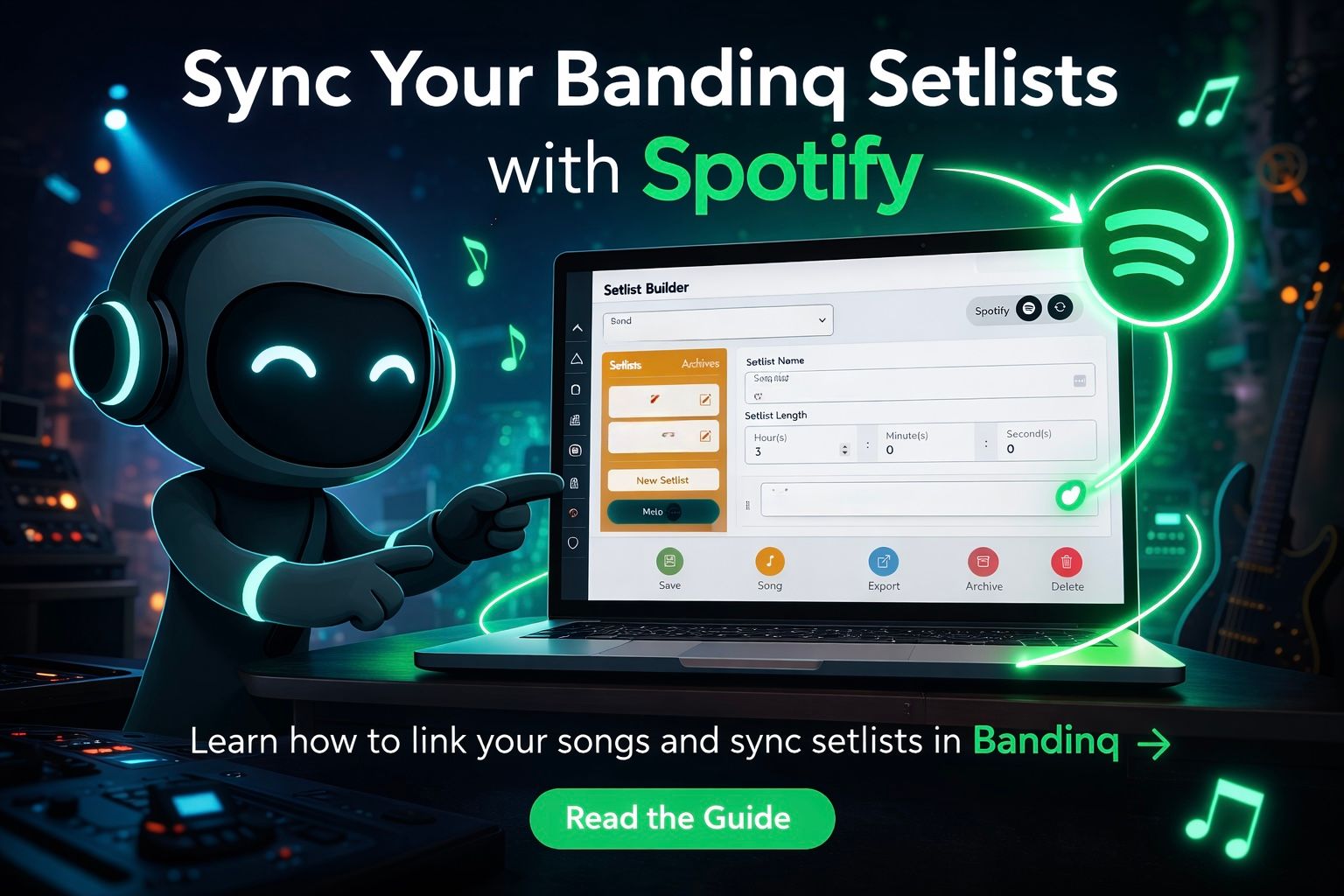
How to Sync Your Bandinq Setlists with Spotify
Rockstar users can now sync their Bandinq setlists directly with Spotify. This makes it easy to share your show's songs as a playlist, rehearse with the exact versions you perform, and keep your band's setlists organized across platforms. 🎸
Follow the steps below to link songs from Spotify and sync your setlist.
1. Open Band Management 🎛️
Navigate to Band Management and select the band you want to work with from the dropdown menu.
2. Navigate to Your Band's Songs 🎵
Use the horizontal sliding sub-menu within the band card to navigate to your band's Songs section.
3. Add or Edit a Song ➕
Click the Add Song button to create a new song, or click the gray pencil icon to edit an existing song.
4. Find the Song on Spotify 🔍
In the song editor popup, click the Find Song button. Enter the song title and artist, then click Find Song to search Spotify's catalog.
5. Select the Correct Version 🎧
Bandinq will display matching songs returned from Spotify, organized by album. Click the Select Song button for the version you want to use.
6. Save the Song 💾
Once selected, the song editor will automatically populate the song information. Click the Save Song button to store the song in your band's catalog.
7. Confirm the Spotify Link 🔊
Songs successfully linked to Spotify will display a yellow button with a speaker icon. This confirms the song is connected to Spotify.
8. Open Setlist Builder 📝
Navigate to Setlist Builder and select your band from the dropdown menu.
9. Create or Edit a Setlist 🎤
Click New Setlist to create a new setlist, or use the gray pencil icon to edit an existing one.
10. Add Your Spotify Songs 🎶
Add the songs you linked from Spotify into your setlist. You should see the same yellow speaker icon next to the songs, confirming they are connected.
11. Save the Setlist 💾
Click the green floppy disk icon to save your setlist.
12. Sync the Setlist with Spotify 🔄
At the top of the setlist, click the sync button with the circular arrows. This will create or update the Spotify playlist for your setlist.
13. Open Your Spotify Playlist 🎧
After syncing, refresh the page. A new button with the Spotify logo will appear next to the sync button. Clicking it will take you directly to the Spotify playlist created from your setlist.
🎶 Ready to build smarter setlists? Try Bandinq and unlock Rockstar features like Spotify setlist syncing.
Start Your Musical Journey Today
Join a platform built to help musicians stay organized, get booked, and grow with confidence. Whether you're forming your first band or managing your next tour, Bandinq gives you the tools to keep everything in sync—and the momentum to move forward.